
SVG Optimizer
Remove editor leftovers and round coordinates to make an SVG smaller without changing how it looks.
Free · runs in your browser · nothing is uploaded
Recent
Your last 10 settings, saved only in this browser. Nothing is uploaded.
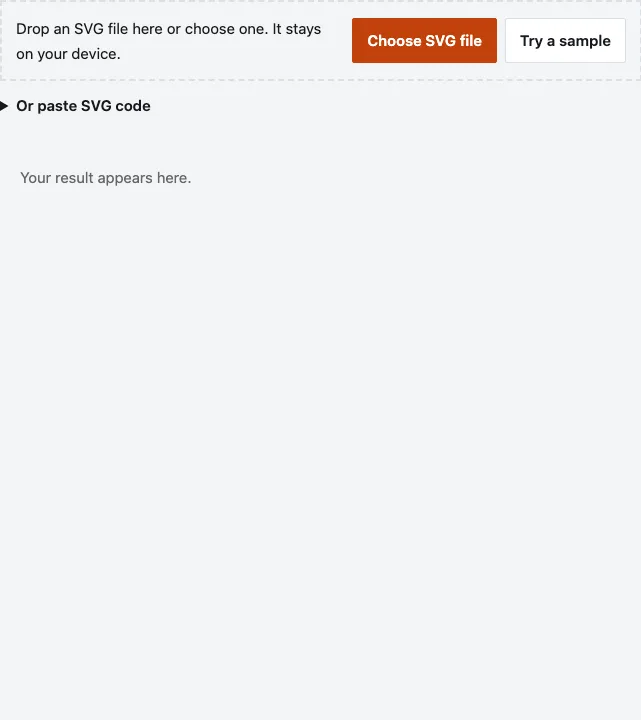
How to use the SVG Optimizer
- Press Choose SVG file, or drop an SVG on the page. You can also open Or paste SVG code and paste the markup. Try a sample loads a small example. The engine loads the first time you use the tool, so the first run can take a moment.
- Open Optimization level and pick Safe (keeps everything visible), Aggressive (smallest file) or Cut file (keeps paths, drops extras). Safe is the default.
- Read the line under the preview: Before and After give the file size in KB, and Saved % gives the percentage. Paths and Nodes describe the drawing.
- Look at the preview to confirm the picture still looks right.
- Try the other levels and compare the numbers.
- Press Download SVG.
- Open the downloaded file in a browser, and in your cutting or design software, before you rely on it.
If the text is not an SVG, the page says “This does not look like an SVG file.” If the SVG has no drawable shapes, it says so instead of returning a file. Text, images, masks and filters do not count as drawable shapes for this check.
Keep your original file. Aggressive removes titles and descriptions and rounds to 2 decimals, and Cut file rewrites shapes as paths, so you may want the untouched version later.
What is SVG optimization?
SVG optimization rewrites an SVG so it holds the same picture in fewer bytes. Design programs save extras: editor metadata, comments, empty or hidden elements, default values and long numbers. The optimizer drops or shortens them. This tool uses SVGO 4.1.0, an open-source optimizer, and it never removes the viewBox.
What do Safe, Aggressive and Cut file change?
Each preset starts from SVGO’s default set and then changes a few settings. The table lists what the code does.
| Safe | Aggressive | Cut file | |
|---|---|---|---|
| Decimals kept in numbers | 3 | 2 | 3 |
| Passes | One | Several | Several |
| Ids | Left alone | Shortened, but ids that <use> or url() point to are kept | Left alone |
| Title and desc | Title kept | Both removed | Both removed |
| Paths outside the canvas | Kept | Removed | Kept |
| Shapes turned into paths | No | Yes | Yes |
| Stroke and fill attributes | Default clean-up | Default clean-up | Left as they are |
| Output larger than input | Input returned instead | Input returned instead | Not guarded |
Cut file also applies transforms to the paths, so a cutter reads the final coordinates directly.
How much file size reduction can I expect?
It depends on the file. One exported with a lot of editor data shrinks noticeably, and an already clean file barely changes. The page shows the real saving for yours, so use that number.
On the small synthetic test SVG with the defaults, the size went from 196 to 189 bytes: 7 bytes, shown as 4%. That file had almost nothing to strip.
How do I clean up an SVG file?
Run it on Safe first and note the saving. If you need more, try Aggressive and check the picture. Use Cut file when the SVG goes to a cutter or plotter and you want plain paths.
- Load the file and leave Optimization level on Safe.
- Note Before, After and Saved %.
- Switch to Aggressive for a smaller file, and open the result to check it.
- Use Cut file for paths without titles, descriptions or shapes.
- Press Download SVG.
Answers to common questions
Will optimization affect visual quality?
Safe leaves everything visible and rounds numbers to 3 decimals. Aggressive rounds to 2 decimals and removes titles and descriptions, so compare the result with the original.
How much reduction can I expect?
It varies with the file. The page reports the saving in KB and percent after each run.
Is my SVG kept private, and is there a size limit?
The work runs in your browser and nothing is uploaded. This page sets no maximum size of its own.
Is there a free SVG cleaner?
Yes, this page cleans an SVG in the browser and gives you the file to download.
Does it keep the viewBox?
Yes. The viewBox is never removed, so scaling and proportions stay the same.
Can optimization make my file bigger?
With Safe and Aggressive, no: if the result is larger, the original is returned. Cut file is not guarded, because it rewrites shapes as paths.
What happens if the SVG cannot be parsed?
The tool hands your original file back unchanged.
Does it change what the SVG looks like?
Not on Safe, apart from rounding of numbers to 3 decimals. Check Aggressive and Cut file output in your own software.
Related tools
- SVG Simplifier: use it to cut path nodes within a tolerance in millimetres.
- SVG for Laser Cutting: use it to trace a picture into laser-ready paths.
- SVG to DST Converter: use it to turn a clean SVG into an embroidery file.
- SVG to PES Converter: use it to turn a clean SVG into a Brother PES file.
- SVG to EPS: use it when a program needs EPS instead of SVG.
- Reduce Image Colors: use it to cut a raster image down to a few colors.
- Image to SVG for Cricut: use it to trace a picture into an SVG.
- Convert Image to Cut File: use it to go from a picture to a cut file.